
Zombies Arent Real Controls and Hotkeys
Every Zombies Arent Real control on the deployment bar and in the field: deploy slots, build tools, height view, classes, loadout, speed and pause.
Zombies Arent Real does not ship a keybinding menu that explains itself, and the first ten minutes are spent clicking things to find out what they do. The full control set is visible if you know where to look: the deployment bar lists the deploy slots, the build tools and the civilian tools, and the two corner panels carry the view and ready-up keys.
This is the reference page. Every key below is taken from the launch build's own HUD.

Deployment bar keys
The bar runs along the bottom of the screen during the planning phase. Numbers are deploy slots; the bracketed letters are tools.
| Key | Action | Notes |
|---|---|---|
1 |
Garrison | $15+, price scales with each purchase |
2 |
Mortar | $270, indirect fire |
3 |
Sniper | $35, long-range single target |
4 |
Spikes | $1.00, movement denial |
5 |
Turret | $90, sustained line fire |
6 |
Mine Field | $200, area denial |
7 |
C4 | $500, demolition |
Q |
Corridor | $0.40 per length, civilian pathing |
E |
Hold | $0.80 per radius, civilians stay put |
B |
Safe Zone | $1.00 per cell |
K |
Wall | blocks movement |
F |
Fortify | reinforces a placed structure |
G |
Gate | controlled opening in a wall |
X |
Refund | refunds the currently selected unit |
The slots are not ordered by price. They are ordered by role: infantry, indirect, precision, traps, sustained, area, explosives. Once you learn the role order, the bar stops being seven buttons and becomes a sentence about what the map needs.
View and loadout keys
Two small panels sit at the bottom right of the deployment screen.
| Key | Panel | Action |
|---|---|---|
J |
View | Opens the class list |
H |
View | Toggles the height view |
Spc |
Ready Up | Starts the mission |
U |
Ready Up | Opens the loadout |
| — | Ready Up | REFUND ALL returns the whole deployment budget |
REFUND ALL is the most underused control in the game. If the first thirty seconds of planning produced a layout you no longer believe in, wipe it and start again. You lose nothing but time, and the planning phase is untimed.
In-mission keys
Once the horde is moving, the bar changes to the support bar: Paratroopers, Strike, Missile, Gas, Heli and APC, each with a remaining count (x20, x1, x0 and so on). Press the number to call that support.
The speed widget in the corner carries the rest:
| Control | Action |
|---|---|
F1 to F4 |
Set game speed to 1x, 2x, 4x, 8x |
Spc |
Pause and resume |
R |
Restart the mission |
The widget also exposes the slower step between 1x and pause (1/2x) plus a Dev 8x label in the build, which is how the developers record footage. On a normal run you will live between 1x and 4x: fast enough to skip the walk-in, slow enough to react to a breach.
The height view deserves its own key
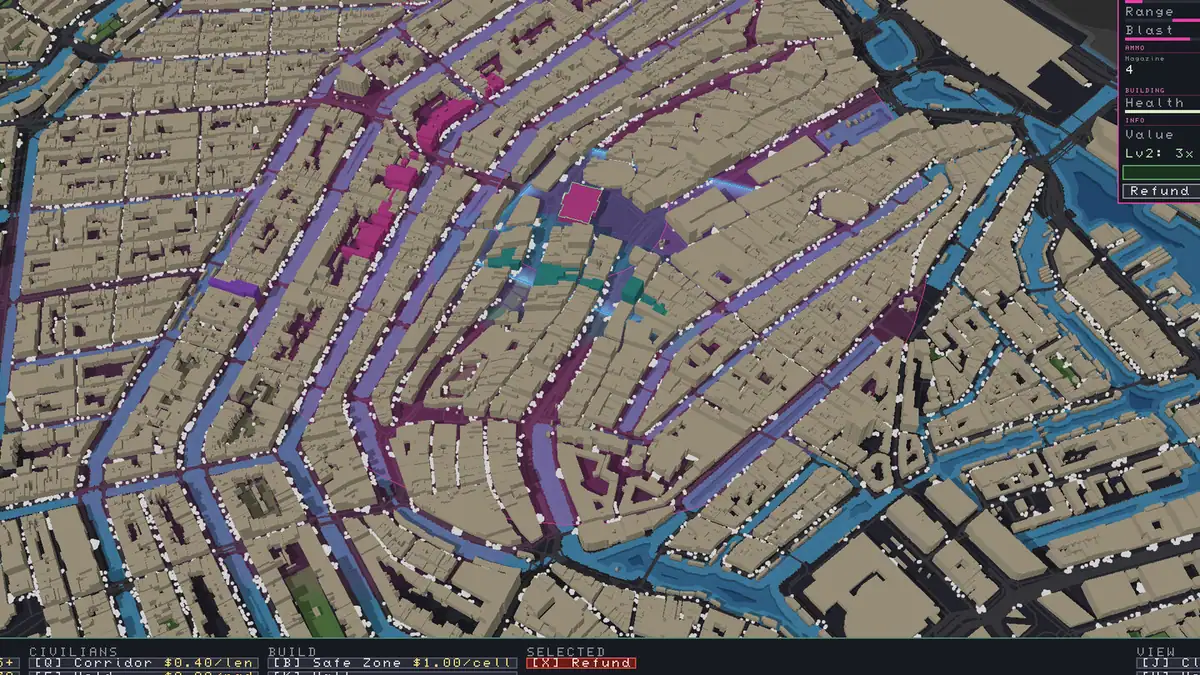
H toggles a three-dimensional block view of the city. It is not cosmetic. Buildings rise out of the map, and you can see which roofs overlook which streets, where the terrain steps, and how the water sits relative to the blocks you are defending.
Use it before spending the budget. A sniper on a tall roof covers more of the street grid than three snipers at ground level, and the height view is the only way to see that before the shooting starts. The full read is in the height and terrain guide →.
Class and loadout keys are a pre-mission decision
J shows classes, U opens the loadout, and the ready-up panel shows how many skill points you have left (1 SP LEFT is what the launch build displayed). SP is spent before the mission starts, so the loadout is part of planning rather than a mid-fight choice.
If you change the loadout after placing units, nothing breaks: the budget is separate from SP, and the ready-up panel keeps both refund routes visible. What SP actually buys is covered in the loadout guide →.
Early Access builds change. If a key on this page does nothing in your client, check the Steam Community discussions ↗ before assuming the layout is wrong — hotkey changes usually get reported there first.
Keyboard habits that save runs
Pause before you buy. Spc stops everything; then place, refund and re-place at leisure. There is no penalty and no timer.
Learn X before you learn any unit. Refunding is how you recover from a bad read of the map, and it is instant.
Tap H twice. Once at the start of planning to read the terrain, once mid-run when a push arrives from a direction you did not expect.
Keep a hand on F1 and F2. Dropping from 4x to 1x the moment a breach happens is the difference between a repair and a rout.
Official source: Steam store page ↗ · Steam discussions ↗ · SteamDB ↗
FAQ
Is there a keybind menu in Zombies Arent Real?
The launch build shows the fixed layout on the HUD rather than a rebinding screen: deploy slots 1-7, tools on Q, E, B, K, F, G and X, view keys J and H, and ready-up on Space. Expect bindings to be adjusted during Early Access.
What does the H key do?
It toggles the height view, a three-dimensional rendering of the city that shows building height and terrain. It is the fastest way to judge which roofs give snipers long sightlines.
How do I pause the game?
Space pauses and resumes. The same key starts the mission from the ready-up panel during planning, so the first press begins the fight and later presses freeze it.
What is REFUND ALL?
It clears every placement you have made during the planning phase and returns the full budget, letting you rebuild the layout from scratch instead of hunting individual units.
Can I change the game speed?
Yes. The speed widget offers 1/2x, 1x, 2x, 4x and 8x, mapped to F1 through F4 for the four main steps, with Space to pause.